Searching for Reservations
There are two ways to search for reservations in the Reservations List tab: Search and Advanced Search.
Breakpoint: 55020 - Search Reservation (Front Office - Reservation)
-
Search - allows users to search for reservations by selecting the Confirmation#, Guest Name, Phone#, Room#, or OTA/CRS Ref# option and entering the corresponding value in the search bar. By default, the Guest Name option will be selected. If the V Cart feature is enabled at the property, users can search for and filter reservations made through the cart by selecting the V Cart Conf # search option and entering the cart confirmation number. When integrated with a Casino Management System (CMS), users can search for patron reservations using the Patron ID search option and it will not be displayed if not integrated with a CMS.
-
Advanced Search - allows users to search for guests (in the selected property) using any or all of the search criteria available in the pane. Users can use confirmation number or booking ID to search for an exact match or use any other search criteria (such as first name and last name) to search for partial matches.
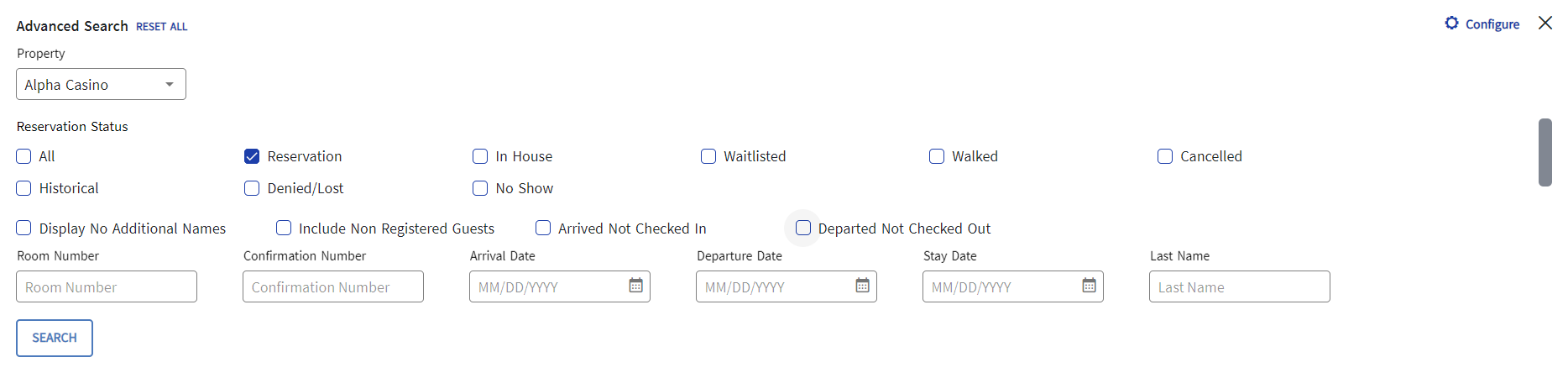
By default, all the options listed in the screen are available for search. However, the Configure option in the Advanced Search allows users to customize the search by adding, removing, or rearranging any search criteria. The user can click Clear All to clear the entered values.
When searching for reservations in the grid, the following options are available:
-
Recents - When selected, all the recent bookings irrespective of the status will be displayed in the grid.
-
Arrivals - When selected, only the reservations in the In House and Reserved status will be displayed in the grid.
-
Checkouts - When selected, all reservations in the Hist status along with the ones that are about to be checked out will be displayed in the grid.
-
In House - When selected, only the reservations in the In House status will be displayed in the grid.
-
ANCI - When selected, only the reservations in the Arrived Not Checked In status will be displayed in the grid.
-
Arrival Date - When a date is selected, all reservations with guests arriving on the selected date will be displayed in the grid.
In the Filter By section, users can filter the reservations in the grid by status, reservation type, reservation category, and based on whether the reservation is guaranteed, reservation includes pets, and rooms are assigned. The following filter options include:
|
Field |
Description |
|---|---|
|
Filter By |
|
|
Status |
Allows users to filter reservations by their status. |
|
Reservation Type |
Allows users to filter reservations by type. |
|
Add On |
Allows users to filter the reservations based on the following options:
|
|
Reservation Category |
Allows users to filter reservations by category. This drop-down will include the names of all categories created in the Category Setup screen (Settings à System Setup à Category Setup). The user can select multiple records from the list to view the corresponding reservation records in the grid. |
|
Filter |
|
Reservation List Screen

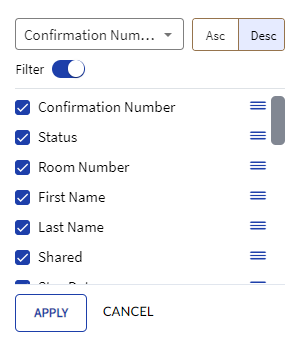
By clicking the Configure option, it enables users to select the columns that must be displayed or hidden from the grid. By default, all columns will be displayed. Other functionalities for this option include the following:
-
The user can choose whether the records in the grid must be arranged in ascending or descending order.
-
Asc - The records in the grid will be displayed in ascending order. By default, the Asc option will be selected.
-
Desc - The records in the grid will be displayed in descending order.
-
-
The user can enable the Filter flag to view the search fields in the grid.
-
The user can drag and drop and arrange the columns in the same order in which they must be displayed in the grid.
Users can perform the following actions by clicking on the kebab menu icon against each reservation record:
-
Copy or transfer the stay details of one guest to another. The user can also choose to copy only specific details of stay to the same or different guest.
-
Create a shared stay for guests.
-
Check in or check out the guests.
-
Cancel the guests’ stay.
-
Change the booking status of the guest to Waitlist.
-
View the summary of the guest’s stay details.
-
View the reservation confirmation details and share it to the guest.
-
Print registration card for the guest.
-
View the folio of a reservation directly by clicking the Folio option.